
How to Verify if Software Updates Are Actually Installed Correctly
The Importance of Software Updates
In the rapidly evolving digital landscape, staying up-to-date with software is not just a technical requirement; it’s a necessity for ensuring the overall security and performance of your devices. Every time you receive a notification about a software update, it represents more than just new features; it often provides essential fixes that enhance your device’s functionality. However, the process of installing these updates can sometimes be fraught with issues, leading users to question if they have been successfully installed.
Why Verify Software Updates?
When it comes to software updates, verification is critical for several compelling reasons:
- Security: One of the paramount reasons to promptly install and verify updates is security. Cyber threats are rampant, and updates often include crucial patches for vulnerabilities that malicious actors can exploit. For instance, in recent years, exploits like the WannaCry ransomware took advantage of unpatched systems, resulting in extensive data loss and financial damages.
- Functionality: While updates frequently bring exciting new features, poorly installed updates may prevent these tools from functioning correctly. Consider a popular application like Zoom; if its latest update fails, users may encounter issues like connectivity problems or inability to access newly launched features.
- Performance: Even slight discrepancies in software installations can negatively impact device performance. An incorrectly installed update might result in a slower system, causing frustration as users struggle with lagging applications and extended loading times.
Common Concerns
Despite the importance of updates, many users encounter complications during installation, leading to confusion and dissatisfaction. Some prevalent issues include:
- Partial Installations: Occasionally, updates may fail midway through the installation process due to network issues or unexpected reboots, rendering the system partially updated. This can create confusion, as certain features may behave unexpectedly or not function at all.
- Incompatibilities: As software evolves, older versions may not communicate effectively with newer updates. For example, outdated antivirus programs may trigger issues with newly installed operating systems, affecting the essential protection of your device.
- Update Errors: It’s not uncommon for users to receive erroneous notifications regarding the installation status of an update. Sometimes, systems might claim that updates are complete when, in fact, they have failed, leaving your device exposed to risks.
To navigate these challenges effectively, being proactive about verifying your updates is crucial. Regularly checking for completed installations ensures that your systems are fortified against emerging threats while maintaining optimal performance. In the following sections, we will explore practical methods for verifying the success of your software updates. From utilizing built-in system tools to monitoring third-party applications, each approach will empower you with the knowledge needed to take charge of your digital environment confidently. Stay tuned as we delve into these valuable verification techniques!
DISCOVER MORE: Click here to learn how A/B tests can enhance your app’s user experience
Methods for Verifying Software Updates
Once you’ve installed a software update, the next crucial step is to verify that it has been implemented correctly. This process can seem overwhelming, especially for those unfamiliar with technical specifications. However, with a few systematic approaches, you can confirm that your updates are not just installed but installed correctly. Here are some reliable methods to ensure the integrity of your software updates:
1. Check Update History
Most operating systems and applications maintain an update history log, which details past installations. Accessing this record can give you an insight into whether your updates were successfully applied.
- Windows: For Windows users, navigate to Settings > Update & Security > Windows Update > View update history. This section will display the updates installed on your system, showing any that may have failed.
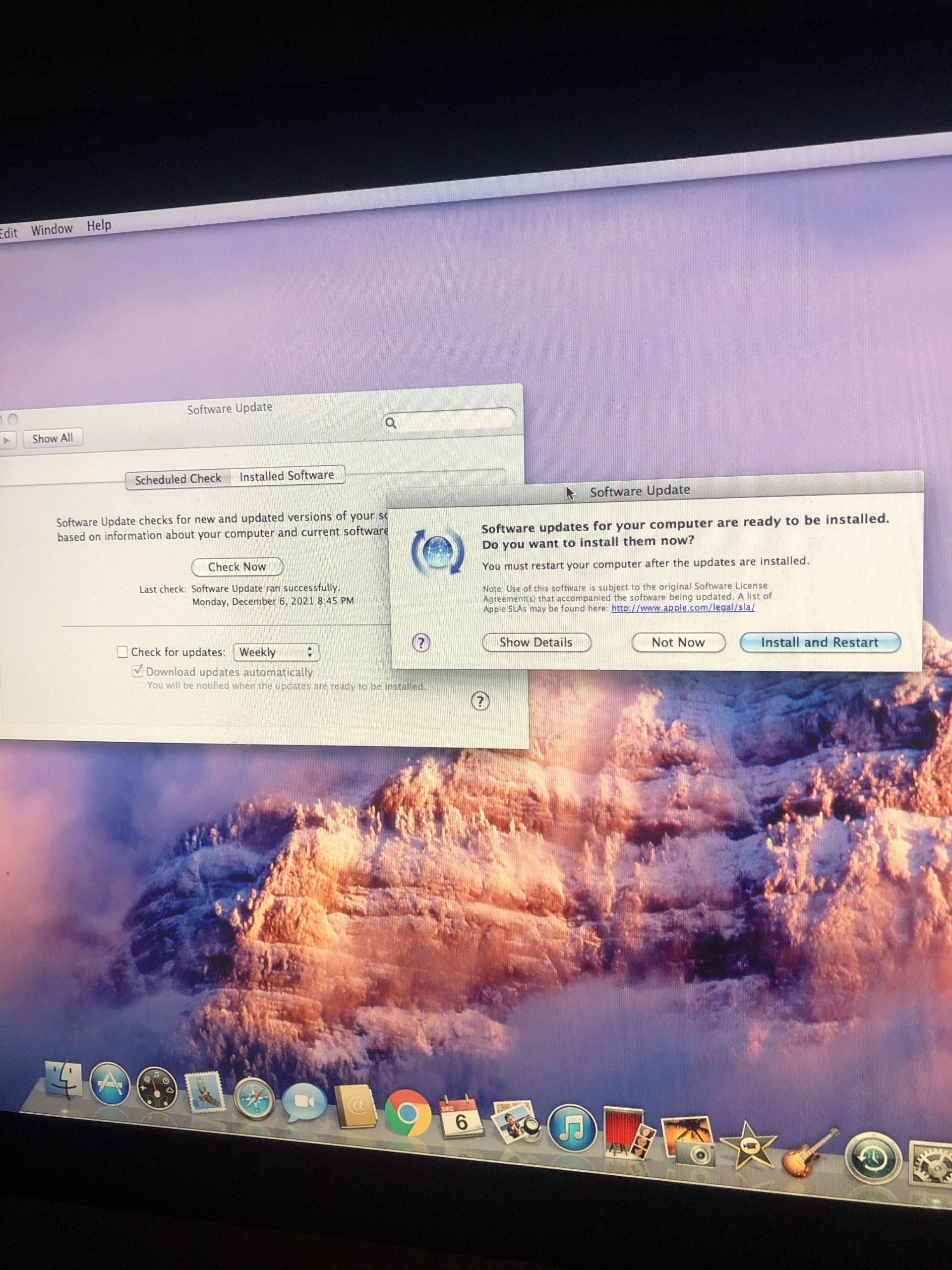
- macOS: Mac users can check the history by selecting System Preferences > Software Update > Update Now. The window will typically show recent updates and their installation status.
- Mobile Devices: On iOS, you’ll find the data in Settings > General > About. Android device users can usually access it under Settings > About Phone > System updates.
2. Utilization of System Tools
Many systems come equipped with built-in diagnostic and management tools that can assist in verifying the successful installation of software updates. Leveraging these tools can facilitate a seamless verification process.
- Command Line Utilities: For more tech-savvy users, command line utilities can serve as powerful tools for verification. For example, Windows users can execute the systeminfo command in Command Prompt to review installed updates and their status. Mac users can utilize Terminal commands such as softwareupdate –history, providing detailed installation information.
- Performance Monitors: Utilizing system monitoring tools allows you to track the performance of your device post-update. Any noticeable decline in performance may suggest issues with the update installation.
3. Manual Verification of Features
Many updates include new features or enhancements that users can manually verify. If you know what changes to expect, checking functionality can provide a straightforward method of validation.
- Test New Features: After installing an update, take the time to explore the changes. For instance, if a productivity application introduces a new tool or interface, actively try it out to confirm it works as expected.
- Check Compatibility: If your update claims to enhance compatibility with other software, open these programs to verify that they are functioning seamlessly post-update.
Employing these methods will help assure you that your software updates are indeed installed correctly, allowing you to navigate your digital usage with confidence. In the next section, we will discuss how to troubleshoot common installation problems that might arise during the update verification process. Remember, ensuring the integrity of your software is essential not just for performance, but for security as well.
| Category | Details |
|---|---|
| Effective Tools | Using utilities such as Windows Update or MacOS Software Update ensures that you’re on the right track. |
| System Inspection | Check your system settings and version history regularly to confirm security patches and updates are implemented. |
| Backup Verification | Create backups before updates to verify installations with less risk, enhancing reliability. |
| User Feedback | Monitor forums and feedback on updates; user experiences can reveal issues and highlight successful installations. |
Continuing to delve into how to verify if software updates have been installed correctly is crucial for maintaining the health of your system. Regular checks through system utilities and user feedback can provide a sound understanding of your software’s status and security posture. It’s not just about installing updates, but ensuring they are effectively integrated into your operating environment. Being proactive with backup strategies prior to installations further enhances system reliability. It ensures that restoration points are available, facilitating troubleshooting if discrepancies arise post-update. If you remain vigilant by conducting inspections of your system settings while listening to peer feedback, you will empower yourself against vulnerabilities that can arise from poorly installed updates. By employing these strategies, you’re not only verifying installations but reinforcing a robust software management practice.
DISCOVER MORE: Click here to learn how A/B tests can enhance your app’s user experience
Troubleshooting Tips for Update Verification
While checking update history and utilizing built-in system tools are effective ways to verify software updates, there can still be instances when something isn’t quite right. If you’ve followed the previous steps and are still uncertain about the correctness of your installation, don’t worry; troubleshooting is the next logical step. Here are some strategies you can employ to diagnose potential issues and ensure your software is functioning as intended:
1. Look for Error Messages
Whenever an update fails to install properly, most systems will generate error messages to alert the user of the situation. Paying close attention to these messages can guide you toward a solution.
- Common Errors: Familiarize yourself with the common update error codes that may arise. For Windows, numbers like 0x80073712 can indicate system file corruption, while macOS users might encounter similar prompts indicating a failure in installation. Understanding what these codes mean can lead you to relevant resources and fixes.
- Search for Solutions: Utilizing online platforms, such as Apple’s official support pages or Microsoft’s help documentation, will often yield troubleshooting guides tailored to specific error codes. These can often help pinpoint the issue and suggest swift resolutions.
2. Inspect System Performance
Another indicator of successful software updates is the performance of your system post-installation. If your software seems sluggish or prone to crashes after an update, it may warrant further investigation.
- Monitor System Resources: Use built-in task managers or resource monitors to observe CPU, memory, and disk usage during regular tasks. Any unusual spikes can indicate that an update may have disrupted the system’s usual functioning.
- Check for Software Conflicts: If a recently updated application isn’t responding well, consider whether it may be conflicting with other software or drivers on your device. Often, driver updates coincide with software updates, and mismatched versions can lead to instability.
3. Utilize Safe Mode
Booting your system in Safe Mode can isolate issues and help determine if the latest software updates caused any conflicts. This function loads only essential system programs, providing an environment less prone to interference from third-party applications.
- Accessing Safe Mode: For Windows, repeatedly pressing the F8 key during boot will lead you to a menu where you can select Safe Mode. In macOS, the same is achieved by holding down the Shift key while starting up. From here, observe whether the updated software operates correctly in this limited environment.
- Testing in Safe Mode: Attempt to utilize the software functions that you were having trouble with. If they perform well in Safe Mode but not during a standard boot, this strongly suggests that there are conflicts introduced by other software or settings.
4. Roll Back Updates if Necessary
Sometimes, even after careful verification, you might find that a particular update causes more problems than it solves. In such cases, rolling back the update can be a prudent choice.
- Windows Rollback: Windows allows users to uninstall specific updates by navigating to Settings > Update & Security > Windows Update > View update history > Uninstall updates. Following the prompts can revert your system to the version prior to the problematic update.
- macOS Rollback: On Macs, reverting to a previous system version can be managed through the Time Machine feature, if enabled. This creates a point-in-time snapshot that can restore your system to its former state.
Implementing these troubleshooting techniques can further bolster your confidence in verifying software updates. The goal is not just to have updates installed but to ensure they are functioning as intended, providing the improvements and security enhancements they promise.
DISCOVER MORE: Click here to enhance your understanding
Conclusion
Verifying whether software updates have been installed correctly is a crucial step in maintaining the efficiency and security of your system. Throughout this article, we have explored numerous strategies ranging from checking update history and utilizing built-in tools, to troubleshooting software conflicts and potential errors. Each element plays a significant role in ensuring that your updates do not just install but operate smoothly and enhance your device’s performance.
Remember, awareness of common error messages is invaluable; by understanding these codes, users can quickly seek solutions to any arising problems. Moreover, performing periodic checks on system performance can reveal hidden issues that might have surfaced post-update. Utilizing modes like Safe Mode is an effective way to isolate conflicts and confirm whether the update has altered your software’s normal functionality.
Importantly, sometimes the best route may be to roll back troubling updates, urging users to take control of their software environment. By exercising these verification techniques diligently, you empower yourself to enjoy the benefits of software advancements while minimizing disruptions.
As technology continues to evolve, staying informed about your software updates is a continuous journey. Don’t hesitate to delve deeper into forums and official platforms for further insights related to your specific system needs. The more proactive you are, the better protected your system will be, transforming updates from a routine task into a strategic advantage.
Related posts:
Troubleshooting Common Issues After Software Updates: Tips and Solutions
Maximizing Device Performance: How Software Updates Can Enhance Speed and Efficiency
The Benefits of Software Updates in Productivity Apps
The Role of User Feedback in Shaping Future Software Updates
How to Choose the Best Time to Perform Software Updates on Your Device
Tips to Prepare Your Device Before Performing a Software Update

Beatriz Johnson is a seasoned tech writer and digital tools expert with a passion for simplifying the complexities of technology and mobile applications. With over a decade of experience in the tech industry, she specializes in topics like productivity apps, software reviews, and emerging digital trends. Through her work, Beatriz empowers readers to make informed technology choices and stay ahead in the ever-changing world of apps and innovation.